Documentation
FileDrop
Installing FileDropNodal VPN
Getting Started with Nodal VPNSigning up for Nodal VPN
Deploying Nodal Agent on Proxmox
Deploying Nodal Agent on VMware ESXi
Deploying Nodal Agent on Hyper-V
Creating a VPN Network
Nodal VPN Client Configuration
Installing the Windows VPN client
Connecting the Nodal VPN Client
Setting a static IP on the Nodal Agent
Password Express
Getting Started with Password ExpressSigning up for Password Express
Installing Windows Connect
Performing a Password Reset
Configuring Authentication Policies for Password Reset
Enrolling a User
Secure File Exchange
Installing on WindowsInstalling on Linux
Installing an SSL Certificate
Uninstalling (All Platforms)
Virtual File System
Browsing Files
Sharing Files
Upload Forms
Incoming Files
Sharing Shortcodes
File Systems
Mounting External FilesLocal Files
Plan Storage
SFTP Folders
Windows Shares
S3 Buckets
Goggle Cloud Storage
Azure Containers
Setting up Password Express
This article will show you how to set up a new instance of our Password Express Community appliance, an on-premise solution for performing user self-service password resets and password breach checking.
Introduction
If you have not done so already, visit the download page and download and deploy the appliance to your preferred hypervisor.
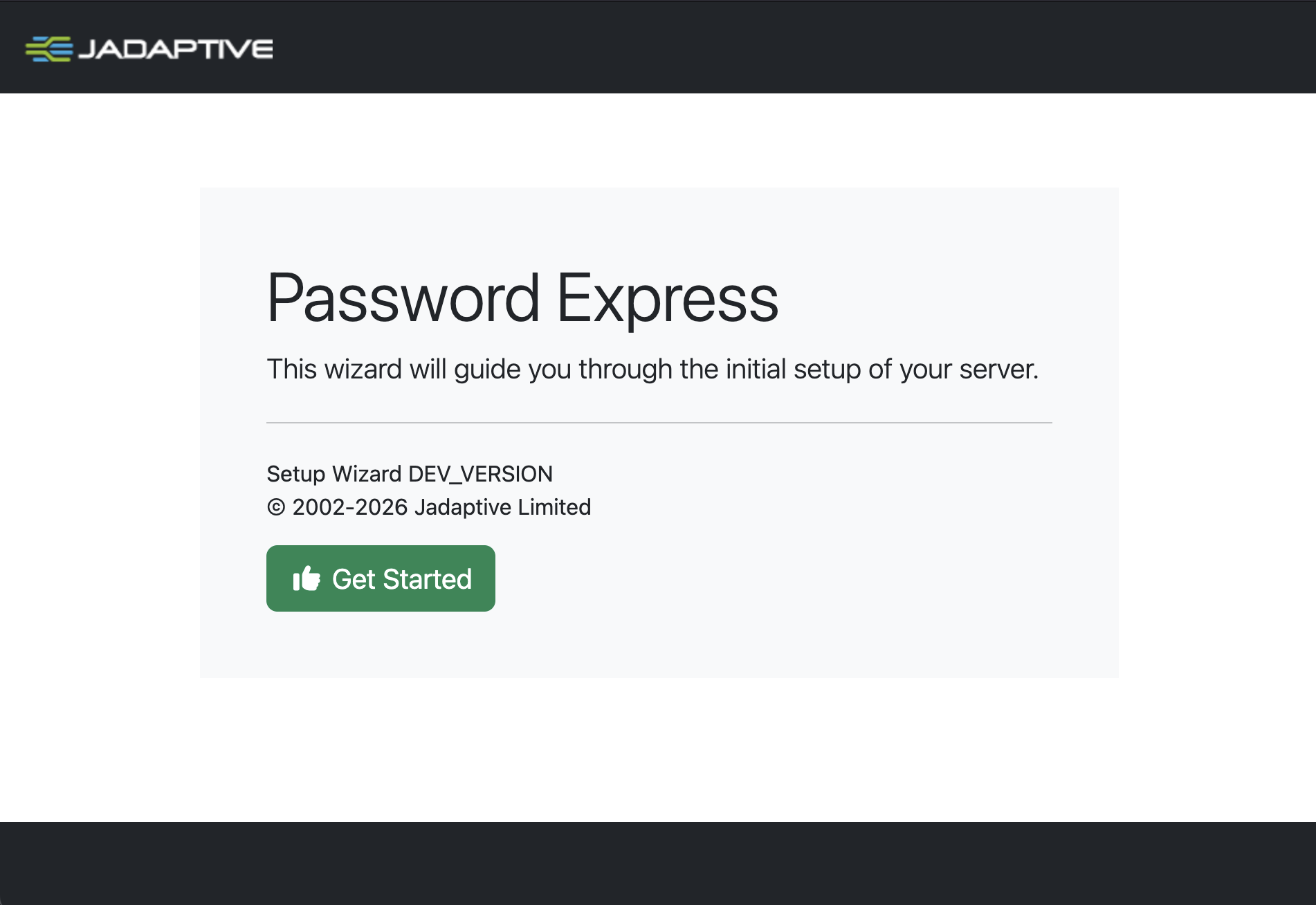
Once the appliance is running, open up your browser to https://<IP_ADDRESS>/
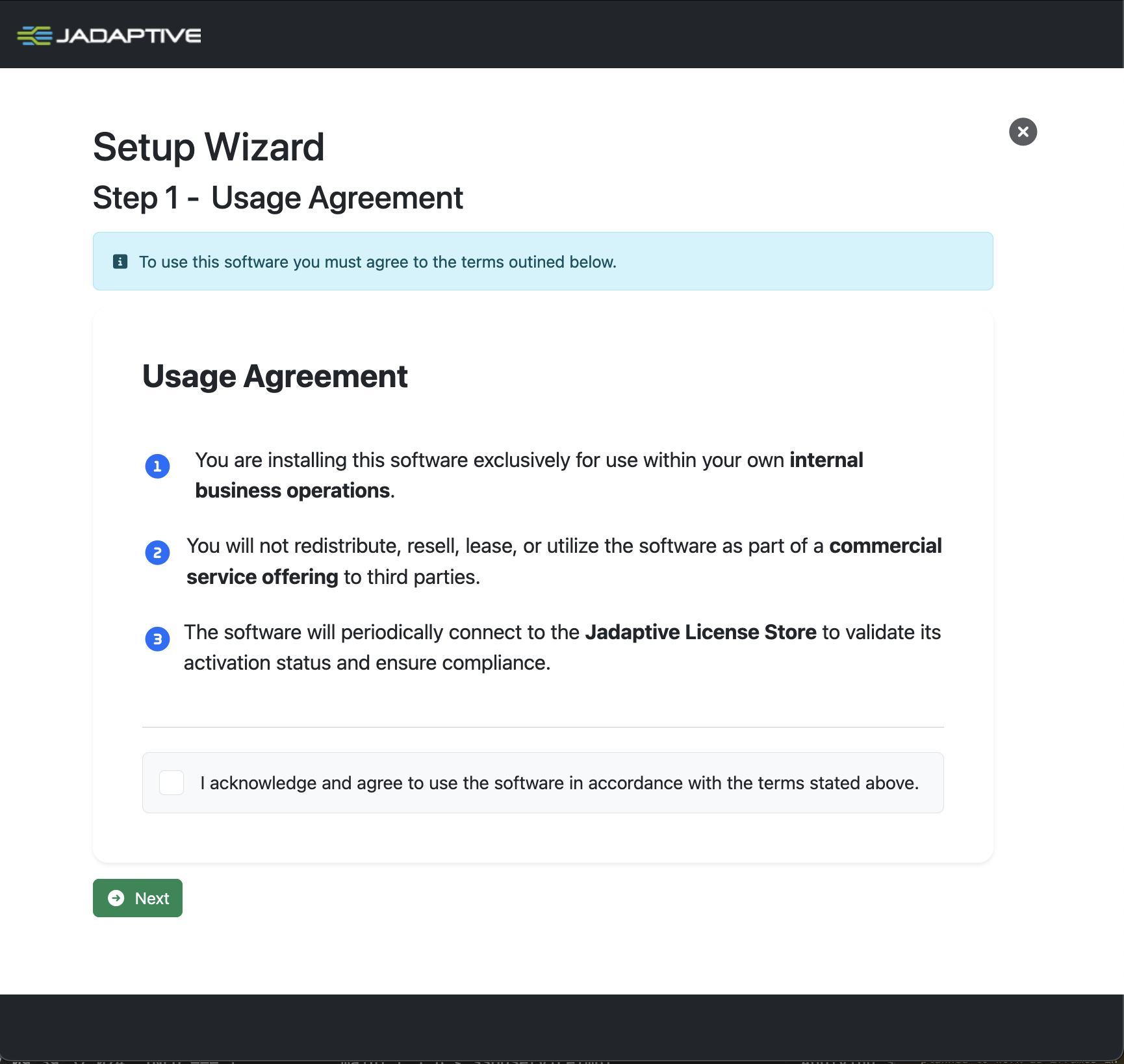
1. Accept Terms
You must agree to the terms of use before you can proceed. The appliance can be used for internal use only, you cannot sell or offer this as a service to customers.
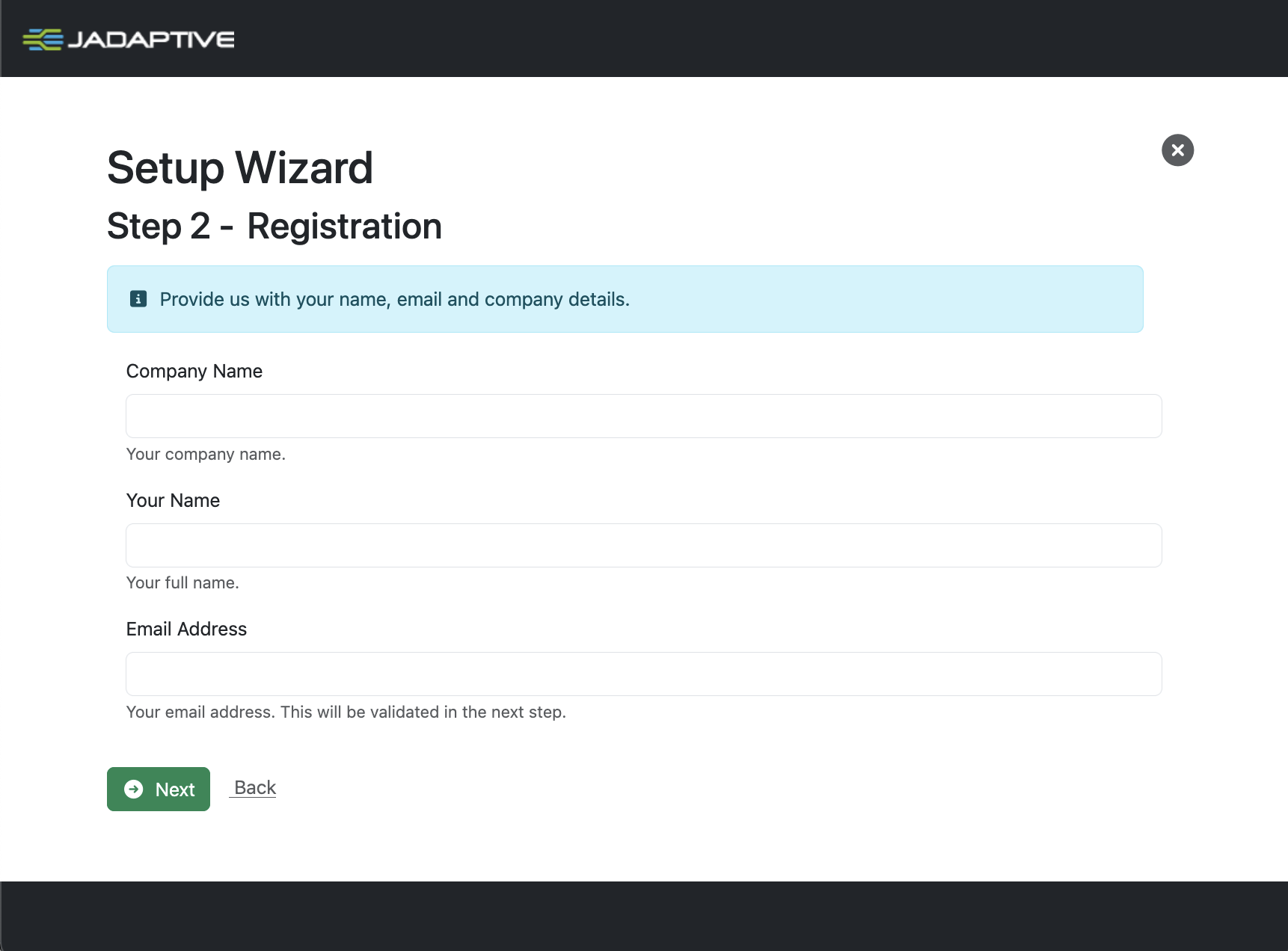
2. Registration Details
Type in your Company Name, Your Name and Email Address and click Next.
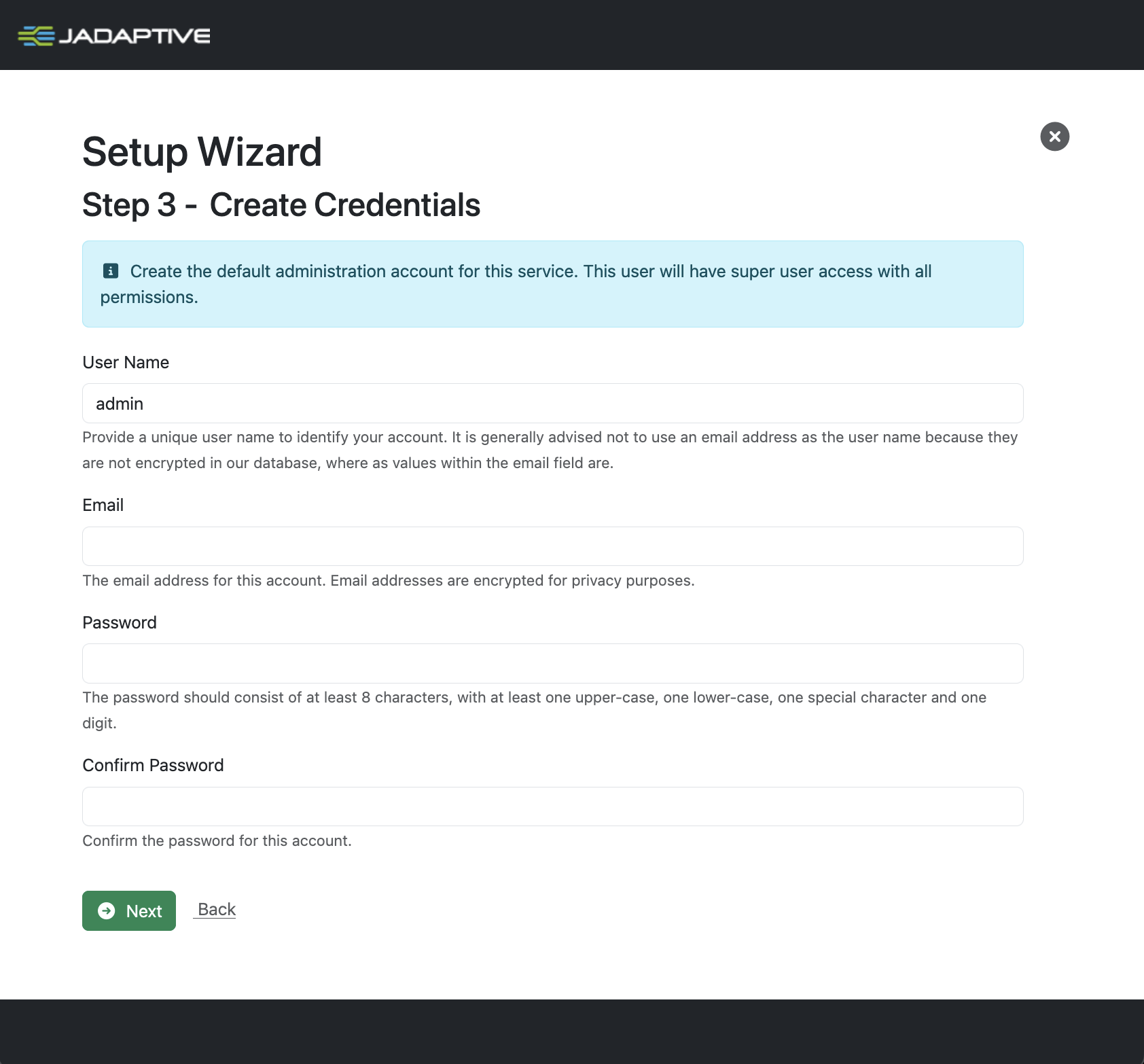
3. Create Credentials
Now you need to create your admin account for your tenant.
Enter your preferred User Name, Email and Password and click Next.
4. Phone Number Configuration
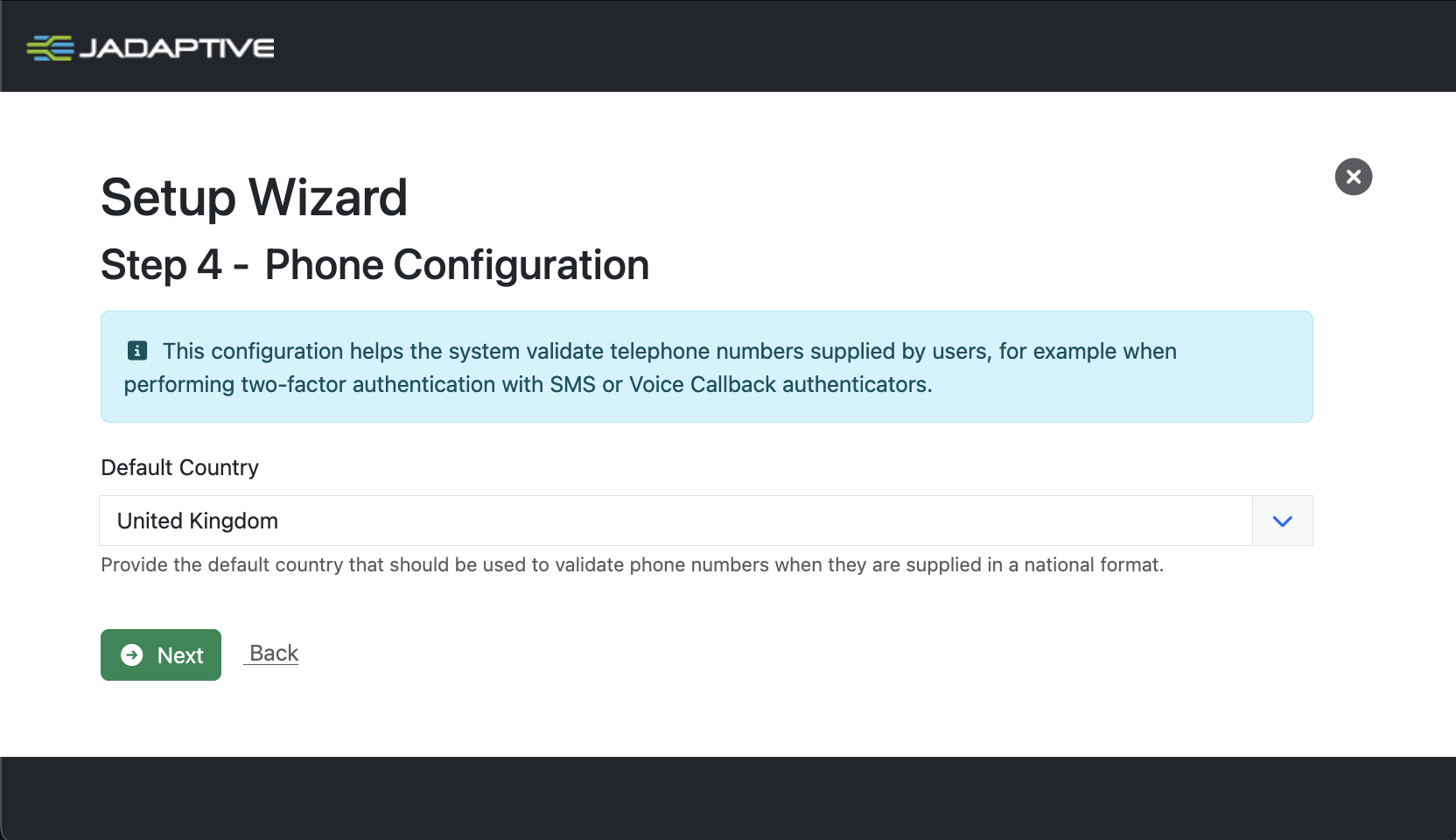
All phone number entries are validated according to ISO rules. If the user does not enter a country code we need to know the default country code to use when validating phone numbers as these are likely stored in your Active Directory as national numbers.
The wizard will try to select the appropriate country based on your locale. If this is incorrect, change it to suit.
Click the dropdown, select your Country and click Next.
5. Configure Password Reset
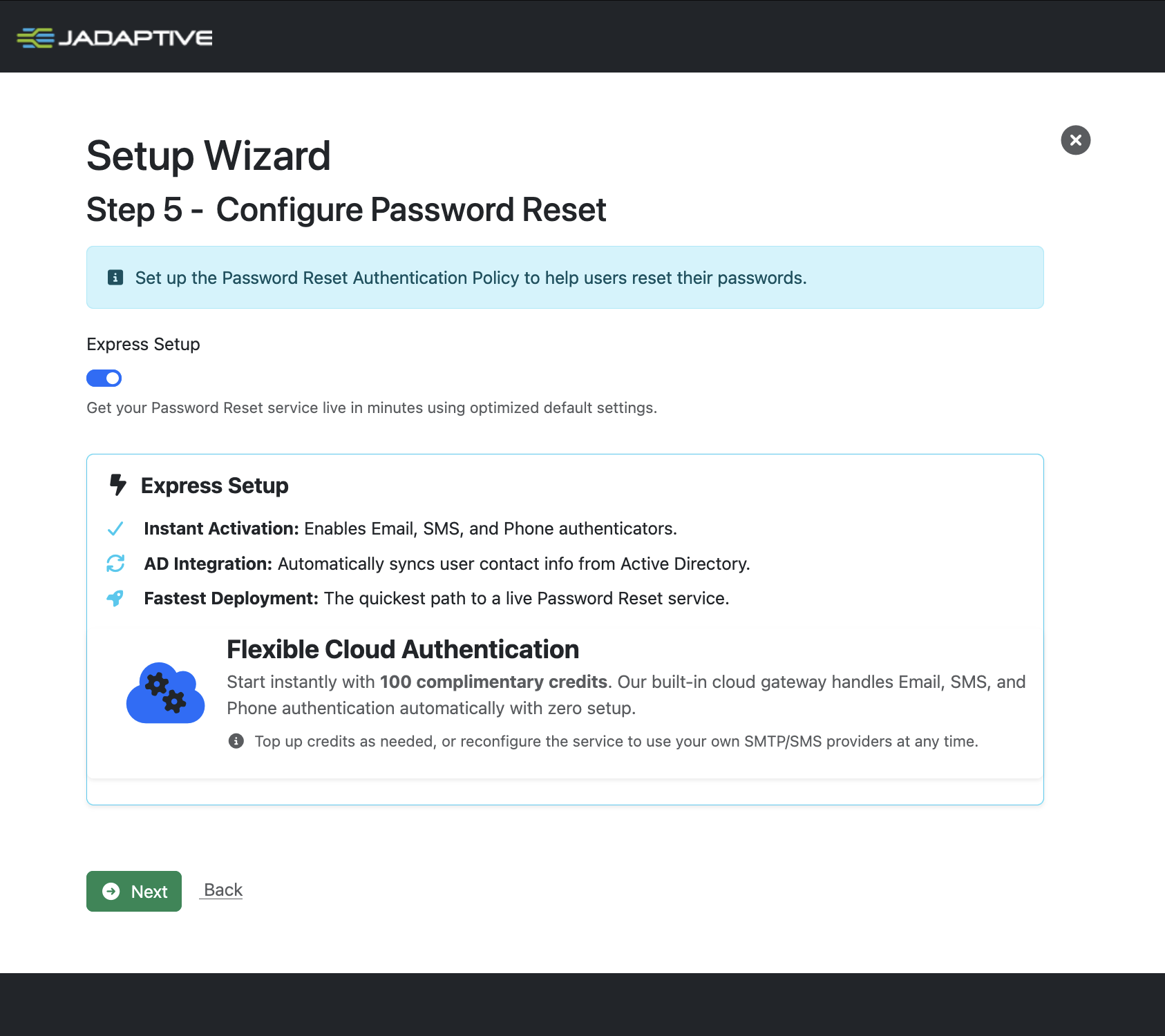
Select how you would like users to reset passwords. You can change this later, for the quickest set up possible, use the Express Setup which uses our cloud service with cost-effective credits to send one-time passwords over SMS, Phone or Email.
Click Next to continue.
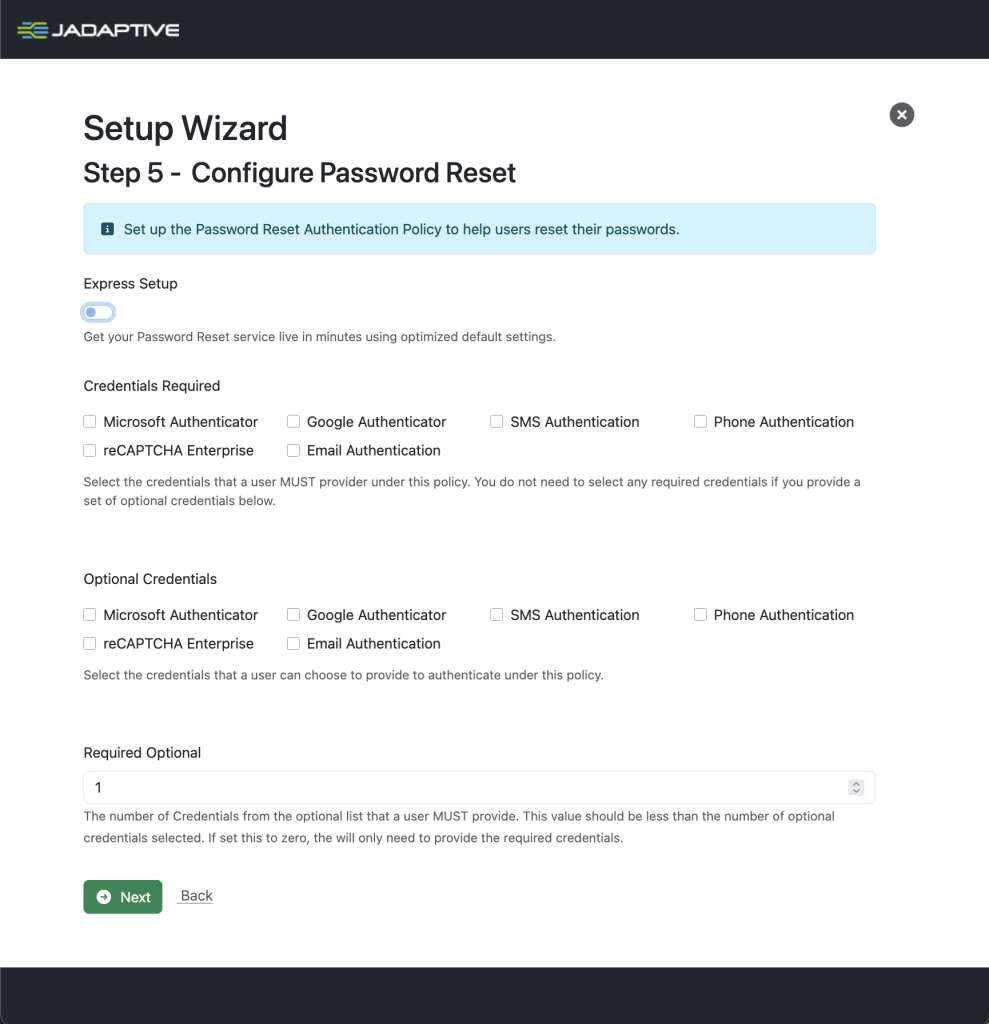
If you untoggle you can choose the factors required. Some of these may require set up by users.
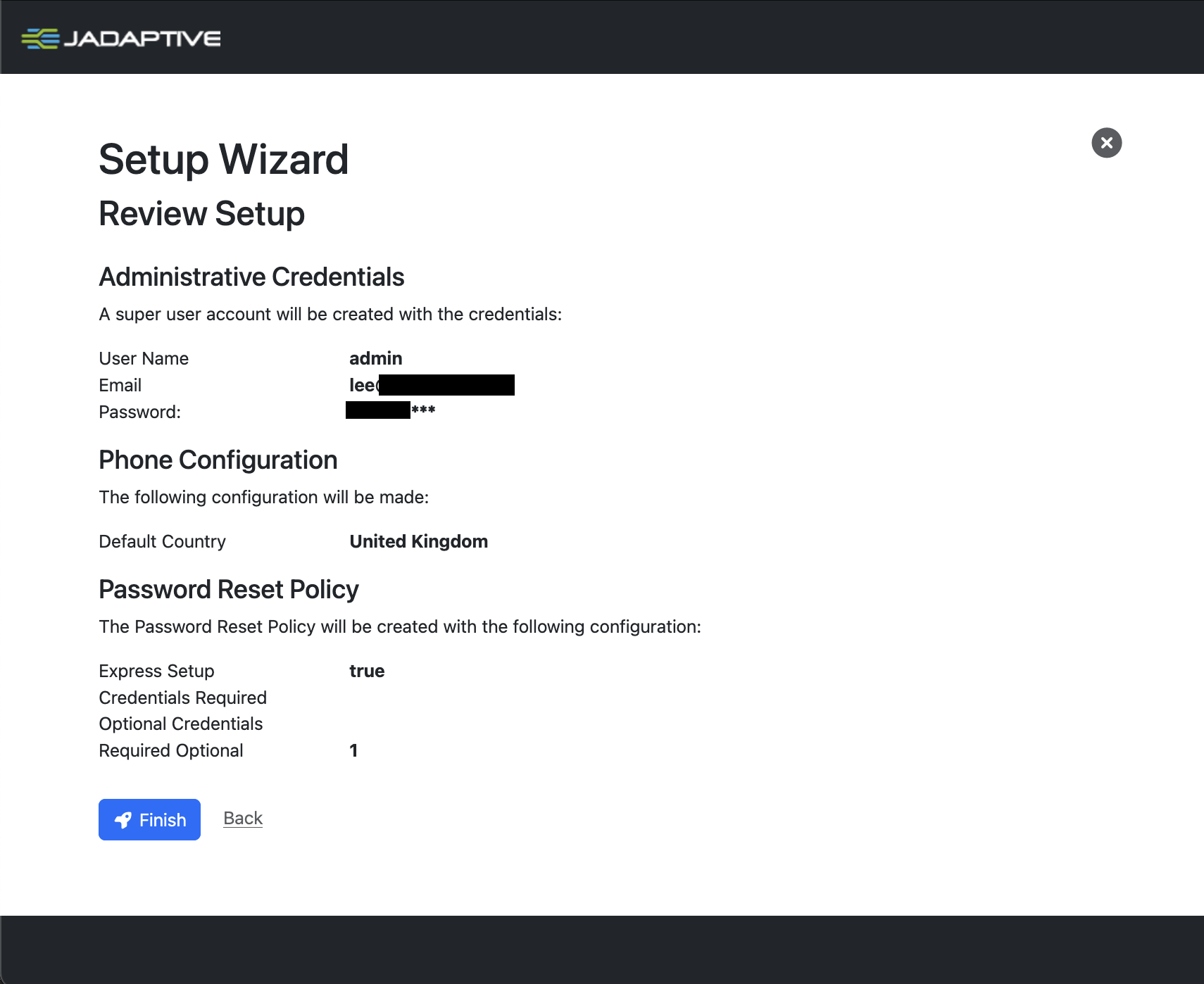
6. Review Setup
The final page allows you to review the settings you have entered. If you are happy with this, click Finish to complete the signup.
7. Setup Complete
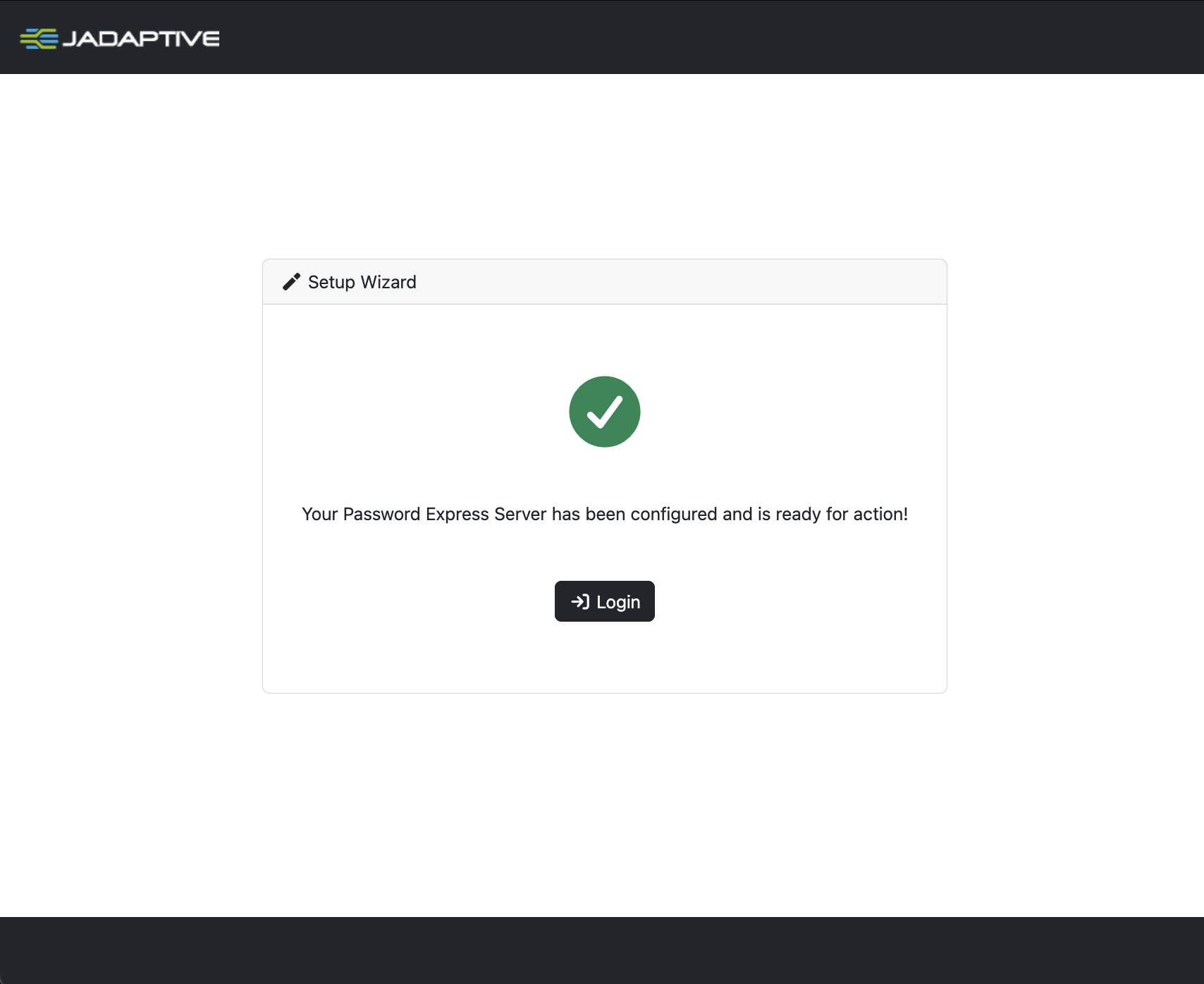
The system setup takes just a moment, after which you be prompted to click Login to proceed to your new tenant.
You can now log in with your admin account using the My Account button.